
Create an Import Task
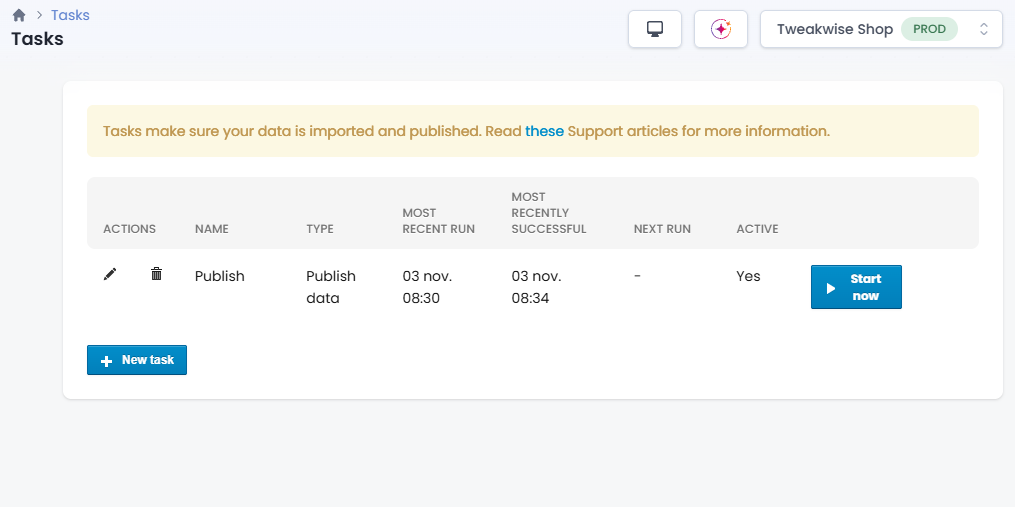
To create a new task, click the "New task" button.
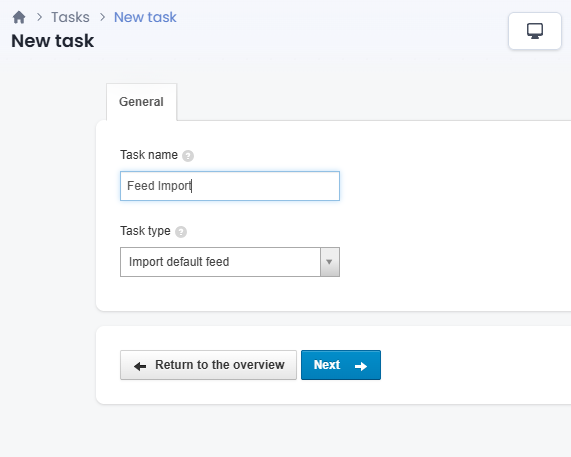
A new screen will open:
- Give your task a name
- Select "Import default feed" as task type.
Configuration
There is a bit more to configure in our feed import task than the name and type. This is the next step in creating a task, but you can also configure an existing task anytime by clicking on the task in the tasks overview (Connectivity → Tasks).
We'll cover various aspects you can configure and points out some best practices in the upcoming sections.
Location and access
We're going to have to configure the feed import task so it knows where your feed can be found and how it can be accessed.
First, we'll need to configure the URL field. As covered in Make a feed available, your feed has to be available over the internet through either HTTP or FTP. Following that guide should have resulted in a URL that can now be used to tell the feed import task where to get your feed from. You can enter this URL in the HTTP URL field in the setup tab.

You might have chosen to secure your feed in order to ensure only trusted entities are able to read the feed. If your feed is protected with a username and password you can enter them under the setup tab as well.
After filling in the fields, you can try to test if Tweakwise is able to find and access your feed by clicking on the test button.

Test button shows error resultIn some cases it is possible that we can download the feed, but the test button shows an error result. This is because the test button executes a different type of request to only retrieve metadata. We don't want to waste resources by downloading the complete feed when testing if we have access.
Your host may not support or actively block the type of request to retrieve the metadata (HEAD) and may only allow or support the type of request to download the feed (GET).
Additional feed validation
When Tweakwise imports your feed, it is validated to ensure not only the structure of the XML document is correct, but also the content is correct. An example of such a validation rule would be that all products are unique. This sort of validation is more extensive than what is covered in the Validate an XML feed guide.
Tweakwise provides some configurability over the validation done during import. For example, you can configure your feed import task to always ensure there are a certain number of products and categories in your feed.

It is a good practice to configure this. A bug in your feed generator could generate half a feed or omit products, causing your shop to be almost empty. Validation rules like these can prevent those scenarios from happening.
Besides having some products unavailable in your shop until the next correct import, they might also be deleted from some configurations. Taking a few seconds to think about these validations now can save you a lot of time in the future.
Email on failure
Keeping the data in your instance up-to-date is important. Having outdated data in your instance can cause various problems depending on your specific situation. It is recommended to setup the task so you'll receive an email if it fails. If you do not configure this, the feed import might fail for an extended period of time without you noticing.

Save
At this point we have configured enough to import our feed manually for the first time. It is time to save the task, after which you'll be redirected back to the tasks overview.

Updated about 23 hours ago