
Categories are the backbone of e-commerce navigation. Unlike flat attributes like "Color," categories often follow a hierarchical structure (e.g., Electronics > Audio > Headphones). Tweakwise allows you to present these hierarchies as dynamic facets, enabling users to drill down into specific product segments efficiently.
This document explains how to configure category facets in the Tweakwise App and how to handle hierarchical data via the API.
Implementation
1. Configure in Tweakwise App
To treat your category structure as a filter, you must ensure the attribute is correctly typed.
- Go to the Tweakwise App.
- Go to Filters > Filtertemplates and open the filtertemplate you want to update.
- Click or add the category attribute (the built-in attribute:
category). - In the details modal, ensure the Type is set to
Category Tree. - Publish your changes.
2. API Integration
When sending a request to the Tweakwise Delivery API, you can indicate the active category using the tn_cid parameter. This determines the context in which merchandising rules and facet configurations are applied.
In the response, selectiontype is set to tree for these facets. This way you can enable a more advanced category display structure that also displays siblings and children of the active category.
By default, the immediate child categories of the selected category are returned.
{
    "facets": [
        {
            "facetsettings": {
                "urlkey": "categorie",
                "title": "Category",
                "selectiontype": "tree"
            },
            "attributes": [
                {
                    "title": "Sweaters & Hoodies",
                    "isselected": false,
                    "nrofresults": 11,
                    "url": "?tn_cid=1000-1001-1004",
                    "link": null,
                    "children": null
                },
                {
                    "title": "Shirts",
                    "isselected": false,
                    "nrofresults": 12,
                    "url": "?tn_cid=1000-1001-1005",
                    "link": null,
                    "children": null
                },
                {
                    "title": "Dresses",
                    "isselected": false,
                    "nrofresults": 6,
                    "url": "?tn_cid=1000-1001-1007",
                    "link": null,
                    "children": null
                },
                {
                    "title": "Blouses",
                    "isselected": false,
                    "nrofresults": 6,
                    "url": "?tn_cid=1000-1001-1006",
                    "link": null,
                    "children": null
                }
            ]
        }
    ]
}
3. Adding hierarchy
To extend this behavior to display the entire structure you must pass the full category path in the tn_cid parameter.
Suppose your category structure is:
Root (id: 1000)
└── Clothing (id: 1001)
    └── Shirts (id: 1005)
    └── Dresses (id: 1007)
    └── Sweaters & Hoodies (id: 1004)
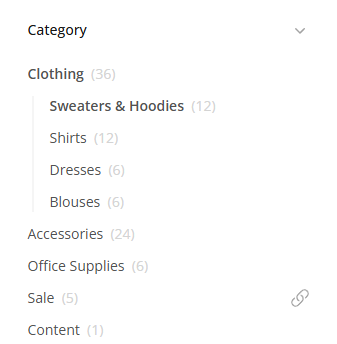
If you provide ?tn_cid=1000-1001 in your request, the API will return:
- The siblings of Clothing
- Mark Clothing as the selected attribute
- The children of Clothing, including Shirts and Dresses
{
    "facets": [
        {
            "facetsettings": {
                "urlkey": "categorie",
                "title": "Category",
                "selectiontype": "tree"
            },
            "attributes": [
                {
                    "title": "Clothing",
                    "isselected": true,
                    "nrofresults": 35,
                    "url": "?tn_cid=1000-1001",
                    "link": null,
                    "children": [
                        {
                            "title": "Sweaters & Hoodies",
                            "isselected": false,
                            "nrofresults": 11,
                            "url": "?tn_cid=1000-1001-1004",
                            "link": null,
                            "children": null
                        },
                        {
                            "title": "Shirts",
                            "isselected": false,
                            "nrofresults": 12,
                            "url": "?tn_cid=1000-1001-1005",
                            "link": null,
                            "children": null
                        },
                        {
                            "title": "Dresses",
                            "isselected": false,
                            "nrofresults": 6,
                            "url": "?tn_cid=1000-1001-1007",
                            "link": null,
                            "children": null
                        },
                        {
                            "title": "Blouses",
                            "isselected": false,
                            "nrofresults": 6,
                            "url": "?tn_cid=1000-1001-1006",
                            "link": null,
                            "children": null
                        }
                    ]
                },
                {
                    "title": "Accessories",
                    "isselected": false,
                    "nrofresults": 24,
                    "url": "?tn_cid=1000-1002",
                    "link": null,
                    "children": null
                }
            ]
        }
    ]
}
This approach allows the client to construct a breadcrumb-like navigation path while maintaining full context, even in cases where categories exist under multiple parent branches.
4. Frontend Logic
Handling hierarchies requires a recursive rendering approach:
- Tree Rendering: Use a recursive component to render sub-categories. If an option contains its own options array, render a nested list.
- Active State: When a user selects a sub-category, you should typically pass the specific id to the facetfilter parameter in your next API call.
Notes & Important Considerations
- Single vs. Multi-select: While standard facets often allow multiple selections, category hierarchies are frequently implemented as single-select to maintain a clear path for the user.
- Depth Limits: Be cautious with extremely deep hierarchies (5+ levels). It can become difficult for users to navigate on mobile devices. Consider using "Guided Selling" for very complex catalogs.
FAQ
Q: Can a product belong to multiple categories in the facet?
A: Yes. If your source data assigns a product to multiple branches (e.g., Gifts > For Him and Accessories > Watches), the product will be counted in both branches within the facet.
Q: Can I hide empty categories?
A: Yes. Tweakwise automatically excludes facet options (including category levels) that have a product count of zero based on the current search query or active filters.