
Enhancing your webshop's search functionality with dynamic suggestions can greatly improve the user experience. This guide will walk you through the steps to implement this feature, allowing users to see relevant suggestions in real-time as they type in the search bar.
Concepts and usage
The configuration you set up in the app dictates how you should request suggestions from the API.
Read our product guide How do I set up Suggestions? for more details.
In this version we apply the item-type principle to suggestions to support all configured item types (e.g. blog, inspiration, visual, etc.) in the suggestions endpoint. That means suggestions may return non-product items, for example a blog post. Each suggested item will include the type field allowing the frontend to distinguish and render products vs content-items appropriately.
Implementation
To display search suggestions, send the following requests while typing:
- Regular suggestions: search phrase, category or attribute filter suggestions.
- Item suggestions: product, blog, page suggestions.
Regular suggestions
For regular suggestions, send a request to:
The response will contain groups of different type of suggestions:
[
    {
        "name": "Suggestions",
        "type": "SearchPhrase",
        "suggestions": [
            /* suggestion */
        ]
    },
    {
        "name": "Categories",
        "type": "Category",
        "suggestions": [
            /* suggestion */
        ]
    },
    {
        "name": "Color",
        "type": "FacetFilter",
        "suggestions": [
            /* suggestion */
        ]
    }
]
Suggestion types
Suggestion results are grouped by different types (impression below):
- Search Phrase Suggestion in a Category: Displaying search query suggestions within popular categories is a great way to guide visitors.
For example, 'coffee' under kitchen appliances or 'Brabantia' under trash bins. - Search Phrase Suggestions: As users type in the search bar, display suggestions to help them find what they’re looking for without the need to type the entire query.
For example: A user types 'red', and suggestions like 'red dress', 'red tunic', and 'red shirt' appear. - Category suggestions: Category suggestions quickly lead visitors to a well-filtered results page.
For example: a user types 'sho', and suggestions like 'shorts', 'shoulder pads', or 'shoes' appear. - Attribute suggestions: filter search results based on specific attributes. This method is ideal for suggesting brands or other specific attributes.
For example: A user types 'Bra', and suggestions like 'Braun' and 'Brabantia' appear. - Products
Product suggestions allow visitors to select a specific product directly from the search bar. For example: A user types 'iPhone', and specific models of iPhones appear as suggestions.
The implementation of a suggestion should be done using the configuration in the suggestion object:
match: use this to display the actual suggestion textnavigationLinkpath: we generate an example URL for you, to demonstrate what navigation-search url could be generated & executed when selecting the suggestion.context.searchterm: contextual information on what searchterm the suggestion is foundcontext.category: see Category.context.facetfilters: see Facet filters.
redirects: see Redirects.
Simple
A simple suggestion when searching for 'bag'. The match or context.searchterm can be used to generate a link to the search page in your platform:
<group>
  <name>Suggestions</name>
  <type>SearchPhrase</type>
  <suggestions>
    <suggestion>
      <match>burkely bag</match>
      <navigationLink>
        <path><![CDATA[ /navigation-search/5eb8cbb7?tn_q=burkely%20bag ]]></path>
        <context>
          <searchterm>burkely bag</searchterm>
        </context>
      </navigationLink>
      <redirects/>
    </suggestion>
  </suggestions>
</group><a href="/search?q=burkely+bag">
burkely bag
</a>Category
Search Phrase Suggestion in a Category and Category suggestions provide contextual information on how to display the category related to the suggestion.
Use suggestions.navigationLink.context to display the category in your desired way:
category.path | the category id & path upwards |
category.name | the category name |
category.link NEW | if a SEO-friendly URL is provided in the feed or backend api this property will be populated with that value |
The searchterm and path can be used to generate a link to a search page in your platform that has the category pre-selected:
<suggestionGroups xmlns:i="http://www.w3.org/2001/XMLSchema-instance">
    <group>
        <name>Category</name>
        <type>Category</type>
        <suggestions>
            <suggestion>
                <match>Sale</match>
                <navigationLink>
                    <path><![CDATA[ /navigation/{instancekey}?tn_cid=1000-1009 ]]></path>
                    <context>
                        <category>
                            <path>1000-1009</path>
                            <name>Sale</name>
                            <link><![CDATA[ /sale ]]></link>
                        </category>
                    </context>
                </navigationLink>
            </suggestion>
        </suggestions>
    </group>
</suggestionGroups>
[
{
"name": "Category",
"type": "Category",
"suggestions": [
{
"match": "Sale",
"navigationLink": {
"path": "/navigation/c1a12e92?tn_cid=1000-1009",
"context": {
"category": {
"path": "1000-1009",
"name": "Sale",
"link": "https://demo.tweakwise.com/en/navigation/c1a12e92/1000?tn_cid=1000&tn_fk_campaign=Season%20Sale"
}
}
}
}
]
}
]In this example, the link value can be used to display the category suggestion:
<a href="/sale">Bags</a>If the link value is not filled, use category.path to match to a category in your platform to generate the correct user (and SEO) friendly category URL. Parse the path and use the id to retrieve the corresponding category and path from your platform.
In the above example, category id 1009 corresponds to the same /sale URL:
<a href="/sale/">Bags</a>Nested context
Every autocomplete instance is connected to a category. In addition, a category has a template configured. If a template has a category facet configured as tree, the suggestions will use the tree on that template to build relevant category context.
In that case, we also supply the parent category so that can be displayed as well:
<group>
  <name>Categories</name>
  <type>Category</type>
  <suggestions>
    <suggestion>
      <match>Fashion</match>
      <navigationLink>
        <path><![CDATA[ /navigation/5eb8cbb7?tn_cid=6001000-60010060 ]]></path>
        <context>
          <category>
            <path>6001000-60010060</path>
            <name>Fashion</name>
            <parentPath>1-6001000</parentPath>
            <parentName>Bags</parentName>
          </category>
        </context>
      </navigationLink>
    </suggestion>
  </suggestions>
</group><a href="/bags/fashion/">
Fashion in <em>Bags</em>
</a>To learn how to configure Autocomplete, read our product guide How do I set up Autocomplete?
Facet filters
The filters can be used to construct a navigation link in your platform. For example use ae-brand to display a link to the specific brand page (<a href="/burkely/">Burkely</a>):
<group>
  <name>Merk</name>
  <type>FacetFilter</type>
  <suggestions>
    <suggestion>
      <match>Burkely</match>
      <navigationLink>
        <path><![CDATA[ /navigation/4f6fd484?tn_cid=1&tn_fk_ae_brand=Burkely ]]></path>
        <context>
          <category>
            <path>1</path>
          </category>
          <facetFilters>
            <filter>
              <key>ae_brand</key>
              <values>
                <value>Burkely</value>
              </values>
            </filter>
          </facetFilters>
        </context>
      </navigationLink>
    </suggestion>
  </suggestions>
</group><a href="/burkely/">
Burkely
</a>Redirects
A suggestion can also contain redirects. This will allow you to redirect to a specific URL based on a search suggestion.
For example, searching for sale would result in a redirect match on /sale/ (<a href="/sale/">Sale</a>):
<group>
  <name>Suggestions</name>
  <type>SearchPhrase</type>
	<suggestions>
    <suggestion>
      <match>Sale</match>
      <navigationLink>
        <path><![CDATA[ /navigation-search/19564673?tn_q=Sale ]]></path>
        <context>
        	<searchterm>Sale</searchterm>
        </context>
      </navigationLink>
      <redirects>
        <redirect>
        	<url>/sale/</url>
        </redirect>
      </redirects>
    </suggestion>
  </suggestions>
</group><a href="/sale/">
Sale
</a>Multiple redirect url's are possible, our recommendation is to pick the first
Note: the redirects are not found based on the searchterm but based on the suggestion. In case there are no suggestions there would be no redirects. The customer would then proceed with an actual search (e.g., by pressing Enter), triggering a navigation search request on the search results page. Consequently, in that request we return the redirects associated with the search term.
Item suggestions
For item suggestions, send a request to:
The response will contain one or more blocks of different type of suggestions:
{
    "blocks": [
        {
            "name": "Products",
            "items": [
                {
                    "type": "product",
                    "itemno": "10001123",
                    "title": "Tweakwise Polo Blue",
                    /* omitted for brevity */
                }
            ],
            "nrofitems": 1
        },
				{
            "name": "Blogs",
            "items": [
                {
                    "type": "blog",
                    "itemno": "K23123",
                    "title": "Tweakwise Feature Launch – November 2025",
                    /* omitted for brevity */
                }
            ],
            "nrofitems": 1
        }
    ]
}
The items can be displayed as desired. By using the type property the display can be different per content type. If more information is required, the data can be enriched from your platform, using the itemno: this is the item identifier known by Tweakwise.
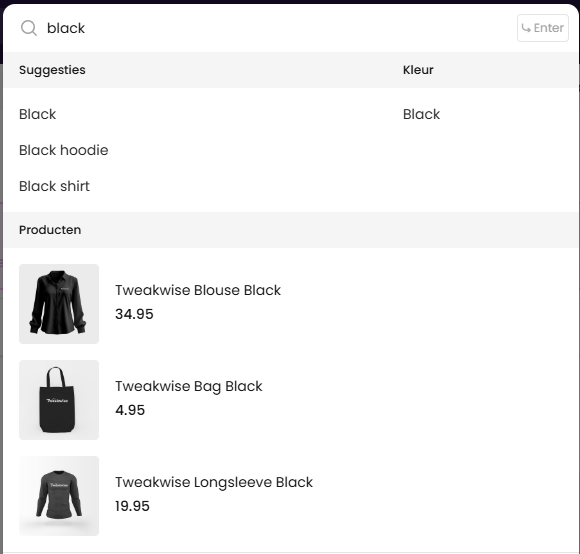
Example
Typing black would result in these requests + responses:
[
    {
        "name": "Suggesties",
        "type": "SearchPhrase",
        "suggestions": [
            {
                "match": "Black",
                "navigationLink": {
                    "context": {
                        "searchterm": "Black"
                    }
                },
                "redirects": []
            },
            {
                "match": "Black hoodie",
                "navigationLink": {
                    "context": {
                        "searchterm": "Black hoodie"
                    }
                },
                "redirects": []
            },
            {
                "match": "Black shirt",
                "navigationLink": {
                    "context": {
                        "searchterm": "Black shirt"
                    }
                },
                "redirects": []
            }
        ]
    },
    {
        "name": "Kleur",
        "type": "FacetFilter",
        "suggestions": [
            {
                "match": "Black",
                "navigationLink": {
                    "context": {
                        "category": {
                            "path": "1000",
                            "link": null
                        },
                        "facetFilters": [
                            {
                                "key": "color",
                                "values": [
                                    "Black"
                                ]
                            }
                        ]
                    }
                }
            }
        ]
    }
]{
"blocks": [
{
"name": "Producten",
"items": [
{
"type": "product",
"itemno": "10001174",
"title": "Tweakwise Blouse Black",
"price": "34.95",
"brand": "Tweakwise",
"image": "/tw-blouse-black.png",
"url": null,
"attributes": []
},
{
"type": "product",
"itemno": "10001136",
"title": "Tweakwise Bag Black",
"price": "4.95",
"brand": "Tweakwise",
"image": "/products/tas-zwart.jpg",
"url": null,
"attributes": []
},
{
"type": "product",
"itemno": "10001130",
"title": "Tweakwise Longsleeve Black",
"price": "19.95",
"brand": "Tweakwise",
"image": "/products/sleeve-zwart.jpg",
"url": null,
"attributes": []
}
],
"nrofitems": 12
}
]
}That can be displayed in the desired way, order and even possible layouts:
Notes & recommendations
- Suggestions do not inherit configurations: if you target a suggestion for a specific category, we will not fall back on a parent category configuration.
- It is recommended to set up one configuration that works for your entire instance, or at least as few as possible configurations that work for most situations.
- Apply request Throttling / debounce input events to prevent unnecessary requests.
- Cancel running requests: if the user is typing, make sure you only display the latest request.
- Language support: make sure to specify the language code, see Language Support.