
Learn how to implement Tweakwise search with suggestions on Shopify, including best practices for search input visibility and user experience optimization.
Smart Search gives e-commerce teams full control over a powerful, AI-driven search experience. Combine keyword and vector search, smart suggestions and intelligent filters to help visitors find the right products faster, reduce zero-result searches and turn search traffic into conversions.
Configuration
To give the user the full e-commerce shopping experience they are used to, we need to use a dedicated search results page.
To display the search results on the dedicated page, make sure you have a dedicated search input as trigger for the search action. We recommend to make this input always visible in the header (not hide it behind a search button), to make searching as easy as possible.
In the code editor, create a new section tweakwise-search.liquid and copy the following snippet:
<div class="section section-{{ section.id }}">
  <div id="tweakwise-output" class="page-width">
    <div class="tw-skeleton__container">
      <h3>{{ 'content.search_results' | t }}</h3>
      <div class="tw-skeleton__grid">
        <div class="tw-skeleton__left">
          <div class="tw-skeleton"> </div>
          <div class="tw-skeleton"> </div>
          <div class="tw-skeleton"> </div>
        </div>
        <div class="tw-skeleton__right">
          {% for i in (1..9) %}
          <div>
            <div class="tw-skeleton is-square"> </div>
            <div class="tw-skeleton is-low"> </div>
          </div>
          {% endfor %}
        </div>
      </div>
    </div>
  </div>
</div>

{%- style -%}
  .section-{{ section.id }} { margin-top: 20px; }
  .tw-skeleton__container { min-height: 100vh; }
  .tw-skeleton { background: #f2f2f2; margin-bottom: 20px; min-height: 1.5em; }
  .tw-skeleton.is-low { min-height: 1em; }
  .tw-skeleton.is-square { aspect-ratio: 1/1; margin-bottom: 7px; }
  .tw-skeleton.is-square + .tw-skeleton { margin-bottom: 10px; }
  .tw-skeleton__grid { display: grid; grid-template-columns: 1fr 3fr; gap: 20px; }
  .tw-skeleton__right { display: grid; grid-template-columns: 1fr 1fr 1fr; gap:10px; }
{%- endstyle -%}

<script>
window.addEventListener('twn.starter.ready', function () {
  const params = new URLSearchParams(location.search);
  var term = params.get("tn_q");
  if(term){
    const listerPage = tweakwiseListerPage({
      query: params.get("tn_q"),
      output: "#tweakwise-output",
      cid: "{{settings.tweakwise_root_cid}}",
      lang: '{{ request.locale.iso_code }}'
    });
  }
});
</script>

{% schema %}
  {
    "name": "Tweakwise Search",
    "settings": [],
    "presets": [{
      "name": "Tweakwise Search",
      "category": "Tweakwise"
    }]
  }
{% endschema %}Notes:
- this code assumes the collections are synced with the collection.id as categoryid. If you choose a different id in the data sync (for example, with a language prefix), make sure you update this
cidto use that format. - the template places a skeleton structure to fight CLS, you can update this by choice.
- update the
tweakwiseListerPagecall to what you need, using the available Options.
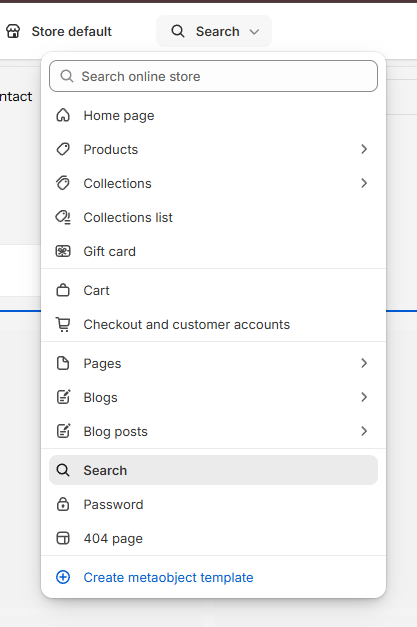
Go to your store theme into edit mode and open the Search page:
In the left sidebar:
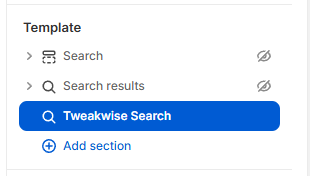
- Disable/hide the
SearchandSearch resultssection - Add the Tweakwise Search section
Create a Prominent Search Input
Go to your header (depending on your theme) and make sure there is a dedicated, always-visible search input in your header:

This can be done as simple as:
<div class="tweakwise-search">
  <form action="{{ routes.search_url }}">
		<input name="tn_q" id="tweakwise-input" autocomplete="off" placeholder="Search for something..">
  </form>
</div>Why always visible? In e-commerce, search is one of the most critical user actions. Research shows that prominent, always-visible search inputs significantly improve user experience and conversion rates. Hiding search behind a toggle button creates unnecessary friction and reduces search usage.
Notes:
- You can style the input and form to your desire.
- Make sure there's a form around the input, with a form action that points to the search results page (
/search). - Make sure the search query parameter is
tn_q - If you already had a search input, update the input id to tweakwise-input so the suggestions get mapped correctly.
- Consider making the search input prominent with adequate sizing and positioning in your header layout.
Implement suggestions
Open tweakwise-snippet.liquid or theme.liquid and add the following code:
<script>
  window.addEventListener("twn.suggestions.ready", function () {
    window.tweakwiseSuggestions({
      input: "#tweakwise-input",
      instancekey: "{{ settings.tweakwise_instancekey }}",
      cid: "{{settings.tweakwise_root_cid}}",
      lang: '{{ request.locale.iso_code }}'
    });
  });
</script>Notes:
- update the
tweakwiseSuggestionscall to what you need, using the available Options.
Test
Now you should have the e-commerce search basics working: a search input with suggestions, when hitting "enter" or selecting a searchphrase suggestion the user is redirected to the search results.