
Tweakwise Recommendations help you increase relevance and average order value with smart, rule-based product suggestions. Upsell, cross-sell and highlight products across your site and emails, without a black box. Stay in control, tweak continuously, and turn product discovery into conversion.
There are two type of recommendations you can add to your web shop:
-
Featured recommendations: helps visitors discover products immediately and set the tone for their shopping experience.
Examples: Best-selling items, New Arrivals, Seasonal promotions or other curated collections.
-
Related recommendations: related recommendations capitalize on customer interest and can significantly increase cart value by suggesting relevant add-ons.
Examples: Complementary items, Similar products, Items frequently bought together or alternatives.
This guide explains how to enable Recommendations on your platform.
Configuration
Step 1: Navigate to the Template
In your Sana Admin, navigate to:
Products → Product pages → Templates → Default.
Step 2: Select the Viewport
Select either the Desktop or Mobile tab depending on which view you are configuring first.
Step 3: Ensure the Item number is on the page
Make sure your template contains the item number element:
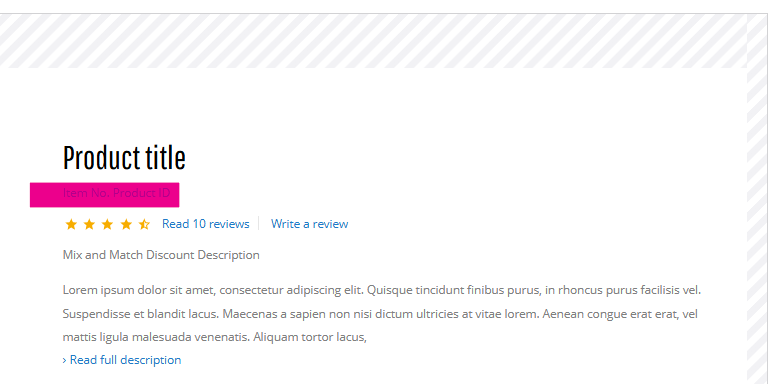
This is necessary to find the current product number.
Step 4: Add the Code Content Block
- Click on ‘Add content’ (for instance, at the bottom of the page or in a specific grid row where you want the recommendations to appear).
- Use the search bar to search for ‘code’.
- Select the Code content block to add it to the page.
Step 5: Inject the Tweakwise Script
Inside the Code content block, you will need to paste your Tweakwise implementation script.
Head content
<script>
  const tweakwise_instancekey = 'abcdefg';
  const tweakwise_groupkey = 'crosssell';

  function loadTweakwise(domain) {
    var script = document.createElement("script");
    script.async = true;
    script.src = domain + "/js/"+tweakwise_instancekey+"/tweakwise.js";
		script.onerror = loadTweakwise("https://gateway.tweakwisenavigator.net");
    document.head.appendChild(script);
  };

  window.addEventListener("twn.recommendations.ready", function () {

   var titleElement = document.querySelector('#related-recommendations__title');
   var idElement = document.querySelector('.Details_item-number-body');

   if(!idElement) {
      titleElement.innerText = '';
      return;
   }

   var id = idElement.innerText.replace('Item No. ', '');

    window.tweakwiseRecommendations({
      output: "#related-recommendations",
      instancekey: tweakwise_instancekey,
      related: {
        productId: id,
        groupKey: tweakwise_groupkey
      }
    });
  });

  loadTweakwise("https://gateway.tweakwisenavigator.com");
</script>- Note: enter the correct instancekey (replace
abcdefg) and groupkey (crosssell) for your respective instancekey and desired recommendation groupkey.
Code content
<h2 id="related-recommendations__title">For you</h2>
<div id="related-recommendations"></div>
Notes:
- Relevant Tweakwise JS documentation can be found here: Tweakwise JS - Recommendations
- Enter a relevant title above the recommendations container to make the block easy to identify.
Step 6: Repeat for Mobile
Ensure you repeat these steps for the Mobile tab if your Sana setup uses separate layouts for different devices to maintain a consistent user experience.
Notes/Important Considerations
- Contextual Data: Ensure your script correctly identifies the current product id . Tweakwise needs this to serve relevant recommendations.
- Placement: While the bottom of the page is a common spot, placing recommendations just below the "Add to Cart" button often yields higher engagement.
- CSS Conflicts: Sana and Tweakwise might have overlapping CSS classes. Always test the visual output in a staging environment to ensure the recommendation tiles align with your brand identity.
FAQ
Why are my recommendations not showing up after adding the code block?
Check if the Sana cache is active. After making changes in Sana Admin, you may need to clear the webshop cache under Setup > Maintenance > Cache to see the changes on the frontend. Additionally, verify that the Tweakwise script is correctly pointing to your instance and that the API key is valid.
How do I pass the current product ID to Tweakwise within the Sana Code block?
Sana allows the use of replacement tokens or JavaScript variables that are available on the PDP. You should ensure your script captures the product id from the DOM or URL path.