
weakwise Recommendations help you increase relevance and average order value with smart, rule-based product suggestions. Upsell, cross-sell and highlight products across your site and emails, without a black box. Stay in control, tweak continuously, and turn product discovery into conversion.
There are two type of recommendations you can add to your web shop:
-
Featured recommendations: helps visitors discover products immediately and set the tone for their shopping experience.
Examples: Best-selling items, New Arrivals, Seasonal promotions or other curated collections.
-
Related recommendations: related recommendations capitalize on customer interest and can significantly increase cart value by suggesting relevant add-ons.
Examples: Complementary items, Similar products, Items frequently bought together or alternatives.
This guide explains how to enable Recommendations on your platform.
Featured recommendations
Featured recommendations are products than can be shown based on a set of rules. For example Popular products or Products for you. The rules can be configured in the Tweakwise App.
In Shopware admin, go to Content → Shopping Experiences and select your listing page template.
-
Add a block using the plus-sign
-

-
Set Block Category to Tweakwise. Tweakwise specific blocks will be visible.
-
Drag the Featured recommendation block to your template.
-
Click the element's ⚙️ clog icon to configure the settings.

-
In the data tab, set Featured recommendation ID to the correct recommendation id (this can be found in the Tweakwise app)
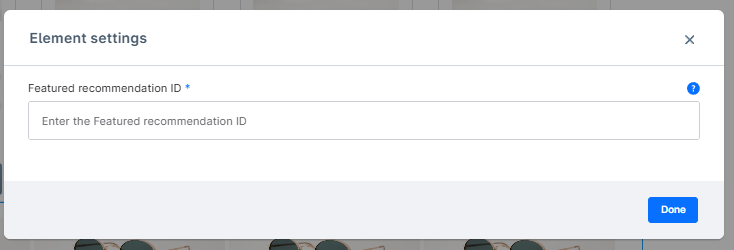
You can find the right id in the Featured products list view in the Tweakwise app.
- Save.
Notes/Important considerations
-
Featured Recommendation ID: you can find the id in the Featured products list view in the Tweakwise app.
-
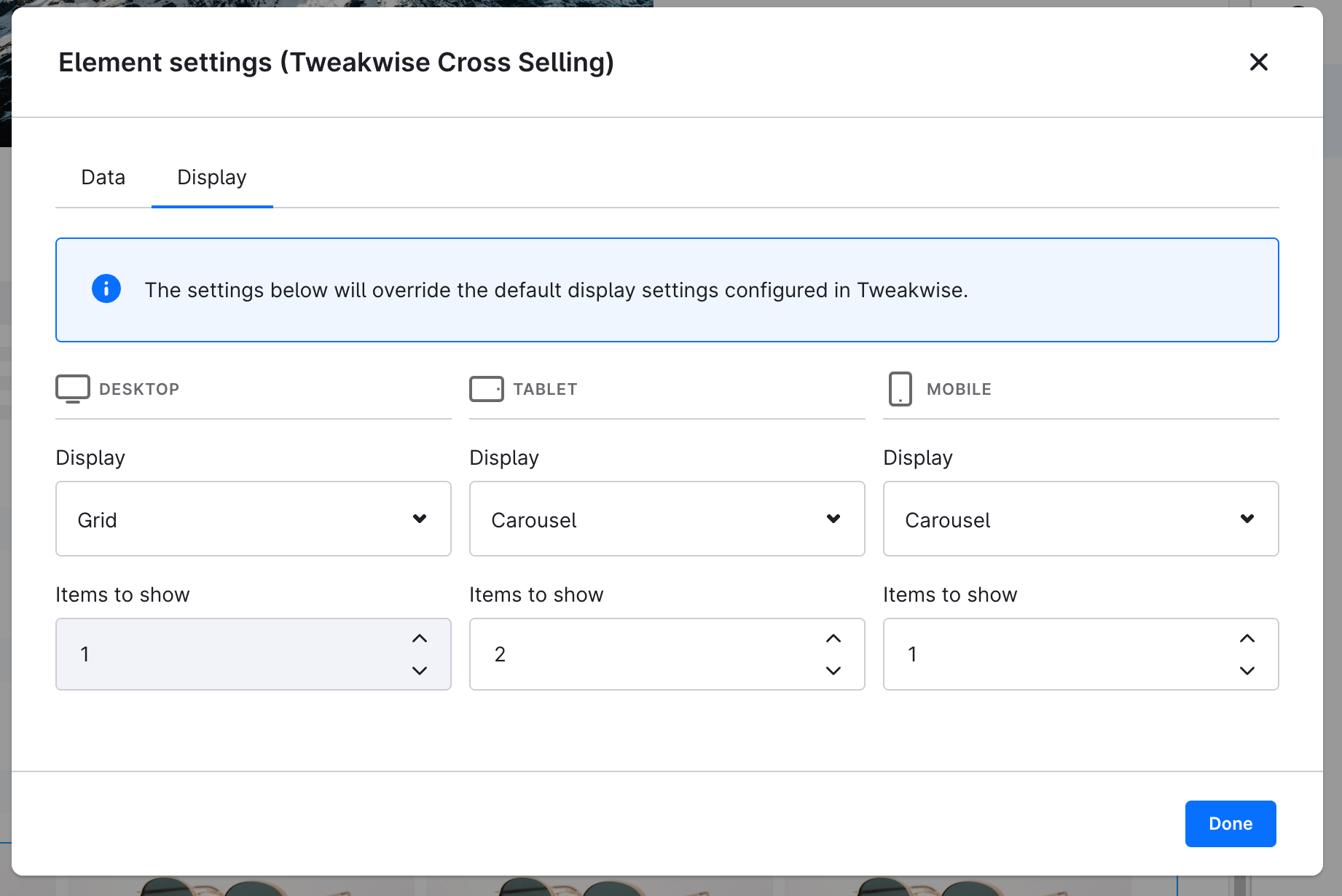
Display: in the display tab it is possible to change the amount of visible products and display type (grid, list)
Related recommendations (upsell/cross-sell)
Related recommendations are products that are shown based on a specific product. They do not require any extra configuration in Shopware.
After configuring cross sell recommendations in Tweakwise you can configure Shopware to show the recommendations on the product detail page or in the shoppingcart.
Product detail page
Shopware allows you to configure cross-sell recommendations on product level or on product detail page experience level.
Our advice: configure this on experience level and override exceptions on product level.
Configure recommendations on Experience level
In Shopware admin, go to Content → Shopping Experiences and select your listing page template.
-
Add a block using the plus-sign
-
Set Block Category to Tweakwise. Tweakwise specific blocks will be visible.
-
Drag the Cross sell recommendation block to your grid.
-
Click the ⚙️clog icon to configure the settings.
-
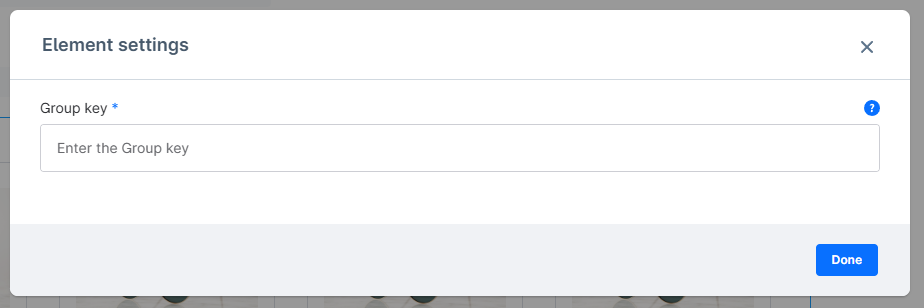
In the data tab, enter a Group key. You can find and configure the group key in the Upselling & cross-selling module in the Tweakwise app.
-
Save.
Configure Recommendations on Product level
If configured on product level, the recommendation will be shown in the default cross sell section of a product.
To configure this on product level, open a product.
- Click on tab Cross Selling
- Click the button Add new Cross Selling
- Configure name, position and active status.
- Select type: Tweakwise recommendations
- Enter a Group key. You can find and configure the group key in the Upselling & cross-selling module in the Tweakwise app.
- Save the product.
Notes/Important considerations
- Group key: You can find and configure the group key in the Upselling & cross-selling module in the Tweakwise app.
- Display: in the display tab it is possible to change the amount of visible products and display type (grid, list)
Shopping cart
Go to Configure Recommendations in the shoppingcart to learn more.