
This guide explains the technical possibilities for setting up brand pages in your e-commerce storefront using Tweakwise. Brand pages allow you to create dedicated landing pages for specific brands, complete with custom product filtering, visual merchandising banners, and targeted product sorting.
By reading this guide, you will answer the following questions:
- What are the main architectural options for setting up brand pages in Tweakwise?
- How do you implement brand pages using category structures, dynamic attribute filtering, or Commerce Pages?
- How do you integrate brand filtering using Tweakwise JS and Delivery API endpoints?
Instruction
The implementation is structured across three primary approaches:
-
Method 1: Category Taxonomy-based Brand Pages
-
Method 2: Curated Commerce Pages powered by your platform
-
Method 3: Automatic Attribute Based Configuration in Tweakwise app
Method 1: Category Taxonomy-Based Brand Pages
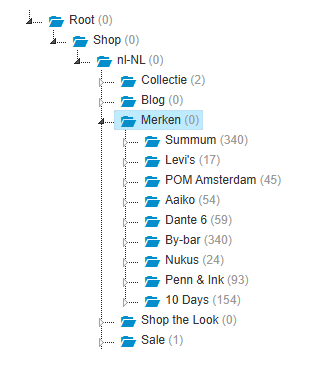
You can structure brand pages directly within your product catalog taxonomy during feed ingestion or PIM integration.
This method allows you to target the brand page like a regular category.
- Map dedicated brand nodes within your catalog category tree.
- Assign products to their respective brand category IDs during XML feed export or API catalog sync.
- Retrieve brand product listings by querying the specific category ID using standard lister endpoints.
Implementation
This method works just like a regular category implementation.
Using API:
/navigation/{instancekey}?tn_cid=9900015Using Tweakwise JS:
tweakwiseListerPage({
  output: '#product-lister',
  cid: '9900015'
});
Method 2: Curated Commerce Pages powered by your platform
For Shopware and Magento, we provide dedicated attribute landing pages modules that handle brand page creation automatically. For any other platform, you should build a similar implementation using the tn_parameters query parameter to filter products by brand attributes on your custom landing pages.
Implementation
Using API implementation:
/navigation/{instancekey}?tn_cid=root&tn_parameters=brand%3dTweakwiseUsing Tweakwise JS:
tweakwiseListerPage({
  output: '#product-lister',
  parameters: 'brand=Tweakwise'
});
Method 3: Automatic Attribute Based Configuration in Tweakwise app
Set up brand pages by adding a brand node in the category tree and using landing page configurations based on brand attributes. This way, you don't need to create a separate category for every brand.
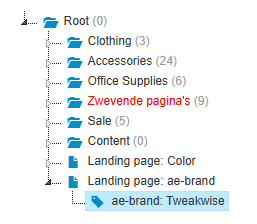
Learn more about landing pages on What is a landing page and how do I create one?.
Why use this option?
-
Lets you apply landing configurations per brand without the manual work of adding brands to the category tree, or implementing Attribute Landing Pages on your platform.
-
Is a good fit when you don't have category management or don't want to use categories.
Implementation
As this is entirily on our end, this method requires no implementation and is automatically applied once the selected attribute or attribute value is selected.